
Managing streaming subscriptions should be simple, but unexpected charges, forgotten free trials, and confusing cancellation options can make the process frustrating. The my.roku.com/subscriptions page helps Roku users review eligible subscriptions, manage recurring payments, and cancel services billed directly through Roku.
Whether you’re trying to stop a monthly charge, identify an unfamiliar subscription, or update your payment information, understanding how Roku’s billing system works can save time and money.
One important detail often causes confusion: not every streaming service installed on a Roku device is billed by Roku. Your subscription’s billing provider determines where you must manage or cancel it.
This guide explains how to access your Roku subscription dashboard, find active plans, cancel recurring payments, troubleshoot missing subscriptions, and avoid unnecessary streaming expenses.
What Is my.roku.com/subscriptions?
The my.roku.com/subscriptions page is Roku’s online subscription management destination. It allows account holders to review and manage supported recurring subscriptions purchased through Roku’s billing system.
Roku is a streaming platform that provides access to entertainment services through streaming players, Roku TVs, and other compatible devices. Users can install streaming apps, access free content, and purchase subscriptions from participating providers.
However, downloading an app and subscribing to its premium content are two different actions.
For example, you might install a streaming app on your Roku TV but pay for the service directly through the provider’s website. In that situation, Roku generally cannot cancel the subscription because the provider controls billing.
What Can You Do Through the Roku Subscription Dashboard?
Depending on the subscription and available account options, you may be able to:
-
View active subscriptions billed through Roku.
-
Check renewal dates and recurring charges.
-
Cancel subscriptions to prevent future renewals.
-
Review available subscription details and plan options.
-
Identify Roku-billed services associated with your account.
-
Access billing settings and manage saved payment methods.
The dashboard is especially useful for households with multiple streaming services because it provides a centralized view of subscriptions processed through Roku.
How to Access my.roku.com/subscriptions Safely
Accessing your subscription dashboard requires signing in to the Roku account associated with your purchases.
Follow these steps:
-
Open a trusted web browser on your phone, tablet, or computer.
-
Enter **https://my.roku.com/subscriptions** in the address bar.
-
Sign in using the email address associated with your Roku account.
-
Complete any verification steps requested by Roku.
-
Review the subscriptions displayed on your account.
-
Select an eligible subscription to view its management options.
If the page redirects you to a sign-in screen, that is normally part of Roku’s account authentication process.
How to Avoid Fake Roku Subscription Websites
Subscription-related searches can attract misleading advertisements and imitation login pages.
To protect your account, enter the official Roku address directly instead of relying on unfamiliar links. Check that the domain is genuinely roku.com and avoid entering your password or payment information on unrelated websites.
Roku account access should never require you to contact an unknown support number displayed in a suspicious pop-up.
How to Cancel a Subscription on Roku
Canceling an unwanted streaming service is one of the most common reasons users visit my.roku.com/subscriptions.
The process is generally straightforward when Roku handles the subscription’s recurring billing.
Cancel a Roku Subscription Using a Web Browser
-
Visit the official Roku subscription management page.
-
Sign in to the account used to purchase the service.
-
Locate the subscription you want to cancel.
-
Select Manage subscription, if available.
-
Choose the cancellation or turn-off-auto-renew option.
-
Follow the confirmation prompts.
-
Verify that the subscription no longer shows an upcoming automatic renewal.
The exact button labels may vary depending on Roku’s interface and the subscription provider.
After cancellation, many paid subscriptions remain accessible until the current billing period ends. Canceling typically prevents future renewals rather than immediately removing prepaid access.
Cancel a Subscription Directly From Your Roku Device
For eligible subscriptions, Roku also offers an on-device management method.
-
Press the Home button on your Roku remote.
-
Highlight the streaming app associated with your subscription.
-
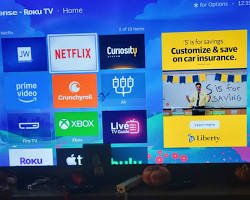
Press the Star (*) button to open the options menu.
-
Select Manage subscription if the option appears.
-
Choose the available cancellation option.
-
Confirm your decision.
If the management option is missing, the subscription may be billed directly by the streaming provider, or the app may not support that management method.
Important: Removing a streaming app from your Roku device does not necessarily cancel its subscription. Always confirm that recurring billing has been stopped.
How to Check Active Subscriptions on Your Roku Account
Regularly reviewing your streaming subscriptions can reveal forgotten services and unnecessary recurring payments.
The my.roku.com/subscriptions dashboard is a useful starting point because it displays eligible Roku-billed plans linked to your signed-in account.
Check the subscription name, billing amount, renewal information, and available management actions. If you maintain more than one Roku account, make sure you’re signed in with the account used for the original purchase.
Why a Streaming Subscription Might Not Appear
A missing subscription does not automatically mean it has been canceled.
Common explanations include:
-
You subscribed directly through the streaming provider.
-
You used a different Roku account.
-
A family member purchased the subscription through another account.
-
Billing is handled through Apple, Google, Amazon, or another third party.
-
The subscription has already expired or is no longer listed among active plans.
The most reliable next step is to determine which company processes the recurring payment.
Understanding Roku Billing vs. Direct Streaming Subscriptions
One of the most important distinctions in Roku subscription management is the difference between the platform you use to watch content and the company that collects your payment.
A streaming service can be available on Roku without Roku controlling its billing. In fact, Roku identifies several subscription arrangements that require different cancellation procedures.
| Subscription type | Who handles billing? | Where to cancel |
|---|---|---|
| Roku-managed subscription | Roku | Roku subscription dashboard |
| Subscription purchased directly from a provider | Streaming provider | Provider’s account website |
| Disney+, Hulu, or Sling TV billed through Roku | Roku processes payment | Contact the streaming provider |
| Subscription purchased through Apple or Google | Apple or Google | Relevant account subscription settings |
| Amazon Prime Video Channels subscription | Amazon | Amazon subscription settings |
Roku specifically directs users to contact Disney+, Hulu, or Sling TV for subscription management even when Roku processes their payments. This exception matters because a Roku charge on your bank statement does not always mean the Roku dashboard can cancel the service.
How to Identify Who Bills Your Subscription
Review the transaction description on your credit card or bank statement.
Charges associated with Roku commonly include descriptions such as Roku, Roku for [provider], or The Roku Channel.
For example, a charge labeled “Roku for CBS Interactive” may correspond to Paramount+, while a charge referencing Warner Media may relate to HBO Max.
If the transaction displays only the streaming provider’s name, check your subscription directly with that company. Roku’s official guide to unfamiliar charges explains additional billing descriptors.
How to Find Your Roku Payment History and Invoices
The my.roku.com/subscriptions dashboard focuses on subscription management, but your Roku account also provides a separate purchase history.
This distinction is useful when investigating older transactions, comparing billing dates, or identifying a charge that doesn’t match your active subscriptions.
To review purchase history:
-
Sign in at my.roku.com.
-
Open Purchase history & invoices.
-
Review transactions under the available content and product categories.
-
Open an invoice to examine its billing details.
-
Compare the information with your financial statement.
Your purchase history may contain streaming subscriptions, eligible digital purchases, and Roku hardware transactions.
Roku also notes that invoices for certain Disney+ and Hulu transactions dated September 4, 2026, or later may contain a Customer Identifier for Billing (CIB). The provider may request that identifier when helping you resolve a billing issue.
How to Stop Unexpected Roku Subscription Charges
Unexpected charges are often caused by automatic renewals, forgotten trials, purchases made by household members, or subscriptions linked to another account.
Before disputing a transaction, investigate its origin.
Step 1: Review Your Active Plans
Open my.roku.com/subscriptions and inspect each listed service.
Pay particular attention to subscriptions you no longer watch and plans that may have renewed automatically.
Step 2: Compare Charges With Your Invoices
Check the amount, transaction date, and billing descriptor against your Roku purchase history.
A billing descriptor may identify a parent company rather than the consumer-facing streaming brand.
Step 3: Check Other Roku Accounts
Households sometimes use different email addresses for different Roku devices.
On your Roku device, navigate to Settings → System → About to check the account email address. Compare it with the account you’re using to review subscriptions.
Step 4: Check for Family Purchases
A household member may have subscribed to a service without realizing it would create a recurring charge.
Consider setting up a Roku purchase PIN to reduce the risk of unwanted transactions.
Step 5: Contact the Appropriate Billing Provider
If you still cannot identify the charge, contact Roku through its official support website or contact the streaming service responsible for the subscription.
Do not assume that deleting your Roku account, removing an app, or replacing your payment card will resolve an existing billing agreement. Verify cancellation with the actual subscription provider.
How to Manage Roku Free Trials Before They Renew
Free trials provide temporary access to premium streaming content, but they can also lead to charges when users forget their expiration dates.
Most eligible trials automatically transition into paid subscriptions unless automatic renewal is disabled.
For example, consider a hypothetical seven-day trial starting on October 10. If the trial terms provide seven full days, the conversion date may be October 17, depending on the provider’s exact billing rules.
Rather than relying on that calculation, check the renewal date shown in your account.
A Better Free-Trial Management Strategy
Use these practical habits to avoid paying for services you never intended to keep:
-
Record the trial’s expiration date immediately after subscribing.
-
Set a calendar reminder at least one day before renewal.
-
Review the service’s cancellation and access terms.
-
Turn off automatic renewal if you do not intend to continue.
-
Save the cancellation confirmation for future reference.
Roku states that free trials must be canceled before their trial period ends to avoid recurring charges.
Can You Get a Refund After Canceling a Roku Subscription?
Canceling a subscription and obtaining a refund are separate processes.
According to Roku’s published refund policy, content and subscriptions purchased and managed directly through Roku are generally prepaid, final, and non-refundable.
When you cancel a paid subscription, access typically continues until the current billing period expires. Roku does not generally issue prorated refunds for unused time after cancellation.
For instance, if an annual subscription renews and you cancel a week later, the cancellation normally prevents the next renewal rather than automatically refunding the unused months.
If your purchase was made directly through another streaming service, its refund policy applies instead.
Review Roku’s official subscription refund policy before assuming a canceled subscription qualifies for reimbursement.
How to Change or Update Your Roku Subscription Plan
Not every user wants to cancel a streaming service completely.
Sometimes, switching to a less expensive plan, adjusting a bundle, or changing subscription features is a better solution.
For eligible subscriptions, visit my.roku.com/subscriptions and look for available plan-management options.
Roku may provide a Switch Plans option for supported subscriptions and bundles.
Upgrading vs. Downgrading
An upgrade can take effect immediately, with a prorated credit applied for unused time on the previous plan.
A downgrade generally takes effect at the end of the current billing cycle, without an immediate refund or credit for the price difference.
Switching plans during a free trial may end the trial and trigger a charge for the new plan.
These conditions depend on the particular subscription, so inspect the confirmation screen before approving any change.
How to Update Your Roku Payment Method
An expired credit card or outdated payment information can interrupt eligible recurring subscriptions.
To update your payment details, sign in to your Roku account and navigate to the payment-method management section.
Follow the prompts to replace or update your saved card information.
Before saving changes, verify the billing details and confirm that you are using Roku’s authentic website.
Remember that changing a payment method does not necessarily cancel existing subscriptions. If your objective is to stop recurring payments, cancel the subscription itself.
Why my.roku.com/subscriptions May Not Be Working
Occasionally, users experience login failures, missing account information, or pages that do not load correctly.
These issues may result from browser settings, account authentication problems, or temporary service disruptions.
Troubleshooting Common Problems
| Problem | Recommended action |
|---|---|
| Subscription page won’t load | Refresh the page or try another browser |
| Sign-in repeatedly fails | Reset your Roku account password |
| Subscription isn’t listed | Verify the billing provider and account email |
| Cancellation button is missing | Check whether the provider manages cancellation |
| Renewal still appears after cancellation | Recheck subscription status and contact support |
| Payment details won’t update | Verify card information and contact Roku support if necessary |
What to Do if You Still Cannot Sign In
Try opening Roku’s website in a private browser window to rule out conflicting browser data.
If the problem continues, use the account recovery options on the official sign-in page. Avoid repeated attempts through third-party websites offering unofficial Roku account assistance.
For unresolved account issues, visit Roku Support.
How to Reduce Your Monthly Roku Streaming Expenses
Subscription management is not just about fixing problems. It is also an opportunity to reduce recurring entertainment expenses.
Consider a household paying for five hypothetical streaming subscriptions:
| Streaming service | Monthly cost |
|---|---|
| Service A | $9.99 |
| Service B | $15.99 |
| Service C | $7.99 |
| Service D | $12.99 |
| Service E | $6.99 |
| Total | $53.95 |
Illustrative prices only; these are not current advertised subscription rates.
That household spends $647.40 annually if all five subscriptions remain active at those prices.
Canceling just two unused services costing $12.99 and $6.99 per month would save approximately $239.76 per year, assuming those prices remain unchanged.
A practical approach is to rotate subscriptions based on what you actually watch. Keep one or two premium services active, finish the content you want, and then switch to another provider.
You can also explore free, ad-supported programming through The Roku Channel and other legitimate free streaming services.
How to Prevent Unauthorized Roku Purchases
Subscription security matters when multiple people share a streaming device.
A Roku account may contain payment information that enables eligible digital purchases, so controlling who can authorize transactions is important.
Consider implementing these safeguards:
-
Use a unique, strong Roku account password.
-
Enable an available purchase PIN.
-
Avoid sharing account credentials unnecessarily.
-
Review active subscriptions and invoices regularly.
-
Check household devices for unfamiliar purchases.
Roku does not charge users merely to create a Roku account or receive customer support. Be suspicious of anyone demanding an activation or support fee.
Frequently Asked Questions About my.roku.com/subscriptions
1. How do I see all my subscriptions on Roku?
Sign in to my.roku.com/subscriptions using your Roku account email and review the subscriptions listed in your dashboard.
This page displays eligible subscriptions managed through Roku. Services billed or managed directly by third-party providers may need to be checked separately through those providers’ websites.
2. How do I cancel a Roku subscription without using my TV?
Open Roku’s official subscription management page in a web browser, sign in, select the subscription, and choose Turn off auto-renew if available.
Confirm the cancellation and review the subscription’s remaining access period. If Roku does not provide a cancellation option, contact the streaming service responsible for managing the plan.
3. Why is Roku charging my credit card every month?
Monthly Roku charges usually indicate an active recurring subscription or a free trial that converted into a paid plan.
Check your Roku subscription dashboard and purchase history to identify the service. Also inspect the bank statement descriptor because some transactions display the subscription provider’s corporate name.
4. Will deleting a Roku app cancel its subscription?
No. Removing an app from your Roku device should not be treated as proof that its subscription has been canceled.
You must cancel through Roku or the relevant billing provider and verify that automatic renewal has been disabled. Otherwise, recurring charges may continue even if you no longer use the app.
5. Can I cancel a Roku subscription and still watch until it expires?
Yes. For most eligible Roku-managed paid subscriptions, disabling automatic renewal allows you to continue accessing the service until the current paid billing period ends.
Cancellation generally prevents the next renewal rather than terminating prepaid access immediately. Roku’s standard policy does not provide partial-term refunds.
Final Thoughts: Take Control of Your Roku Subscriptions
The my.roku.com/subscriptions dashboard is an important account-management tool for reviewing eligible streaming plans, controlling renewals, and avoiding unnecessary subscription expenses.
The key is identifying who manages each subscription. Roku-billed services are not always Roku-managed, and canceling an app is different from canceling its recurring payment.
Start by visiting the official Roku subscription dashboard, reviewing your active plans, and turning off automatic renewal for services you no longer need.
Then check your purchase history, verify any unfamiliar charges, and establish a monthly subscription review routine. A few minutes of account maintenance can prevent avoidable payments and give you better control over your streaming budget.
